An update banner can suggest that an Android app is out of date, but the message may appear in a browser, inside an app or in an app store. Those are different places to begin. If you are trying to diagnose a 918Kiss-related update message, first identify which app is already on your phone and where the message came from. A familiar name or icon is only one part of that check.
Find the installed version
On many Android phones, open Settings, choose Apps and select the relevant entry to open App info. The route varies by phone maker and Android release. You may also be able to reach App info by holding the app icon and tapping an information button. Record the displayed name, version if shown, phone model and Android version. A work profile can have a separate copy of an app, so check that you are inspecting the same profile that opened the prompt.
If you see two icons with similar names, compare their App info screens. One icon may be a website shortcut that opens a browser tab. Check whether the alert appears while a browser address bar is visible. A prompt on a web page and a notice from the store that originally installed an app need different checks.
Check the publisher through the original update channel
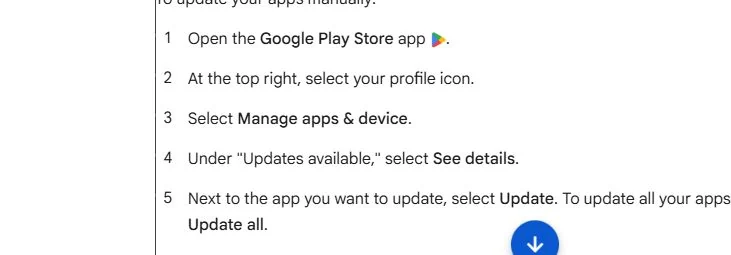
If you installed an app through Google Play, check the installed app’s own listing under Manage apps & device in the Play Store. Record the developer shown there and look for an Update button. Compare that information with the screen that claims an update exists. The same app name in a search result can lead to a different listing. This procedure checks an existing Play installation and leaves the availability of any particular app to the store for your device and region. Google Play’s Android update instructions.
If Google Play was never the original source or you cannot establish the source, ask the publisher through contact details you can verify independently. Describe the exact installed version and the place where the message appeared. A file named “latest” in a message, a search ad or a file-sharing folder supplies no reliable evidence about which publisher made it or whether it fits your device.
Separate a missing update from a failed update
- Store shows an update that will not finish. Check free device storage and network connectivity and note any error message. Follow the store’s own help for that error.
- Store shows no update, but a website keeps prompting. Compare the address and app details. Ask the verified publisher whether the notice applies to your version or device before acting.
- Android displays a security warning. Read the warning and stop the installation. Keep Play Protect enabled and verify the source. Google Play Protect guidance.
Example: the browser claims there is a newer build
Imagine an app icon opens a browser page showing “Update required”. App info shows a browser entry and no matching separate application. The result gives you a narrower question for support: is the supported access method a web page, a home-screen shortcut or a separately distributed app? Note the browser address and the exact wording of the banner. Those two facts are more useful than guessing a version from a filename.
Before making changes, keep a note of the installed version, publisher, original channel, error and time. Avoid deleting the app or clearing its stored data as a first step, as either can remove local settings or require an account recovery you have yet to confirm.
Related reading · 918Kiss provider overview




 WABO
 AB33
 UBAO
 WABET